Using the Ship Event Form to Share your Traceability Data
Wholechain provides suppliers multiple options to submit required traceability data to Enterprise Wholechain users:
- Suppliers that are current Wholechain users can sign-in and connect their account directly to yours through the Wholechain User Interface to share data directly.
- Suppliers who have their own interoperable Verified GDST Capable System can connect their account to your Wholechain account to share data directly.
- Non-Wholechain users can use an authorized email address to create a Free Wholechain account to submit shipping event key data elements in the Ship Event Form.
This guide describes how suppliers can use Wholechain to submit shipping event key data elements to Enterprise Wholechain users.
Instructions
Accessing Your Account
- Wholechain Enterprise Customers will invite authorized users via an authorized email address to access their Wholechain Supplier Portal.
- Note: Only email addresses authorized by the Wholechain Enterprise Customer will have access to the Wholechain Supplier Portal. If a supplier needs access given to the Supplier Portal of their buyer in order to Connect or submit data via the Ship Event Form, please email your buyer contact and copy support@wholechain.com.
- Authorized users will receive an email invitation from support@wholechain.com. In the email invitation, click View. You will be redirected to the Wholechain Supplier Portal.
- Once you are in the Wholechain Supplier Portal, in Connect Your System, click Use Wholechain.
- Enter your authorized email address—the email your invitation came to. A verification code will be sent to your authorized email address.
- Enter the Verification Code and click Verify Code.
- Click on Your Account / Company Name.
- Congrats! You are now viewing your Wholechain Account Dashboard. Goin forward, you can also access your Wholechain account directly by going to the Wholechain Login.
IMPORTANT: You must set up your company locations before you can use the Ship Event Form. See instructions below.
Setting Up Your Locations
- In the left navigation bar, under Master Data, click Locations.
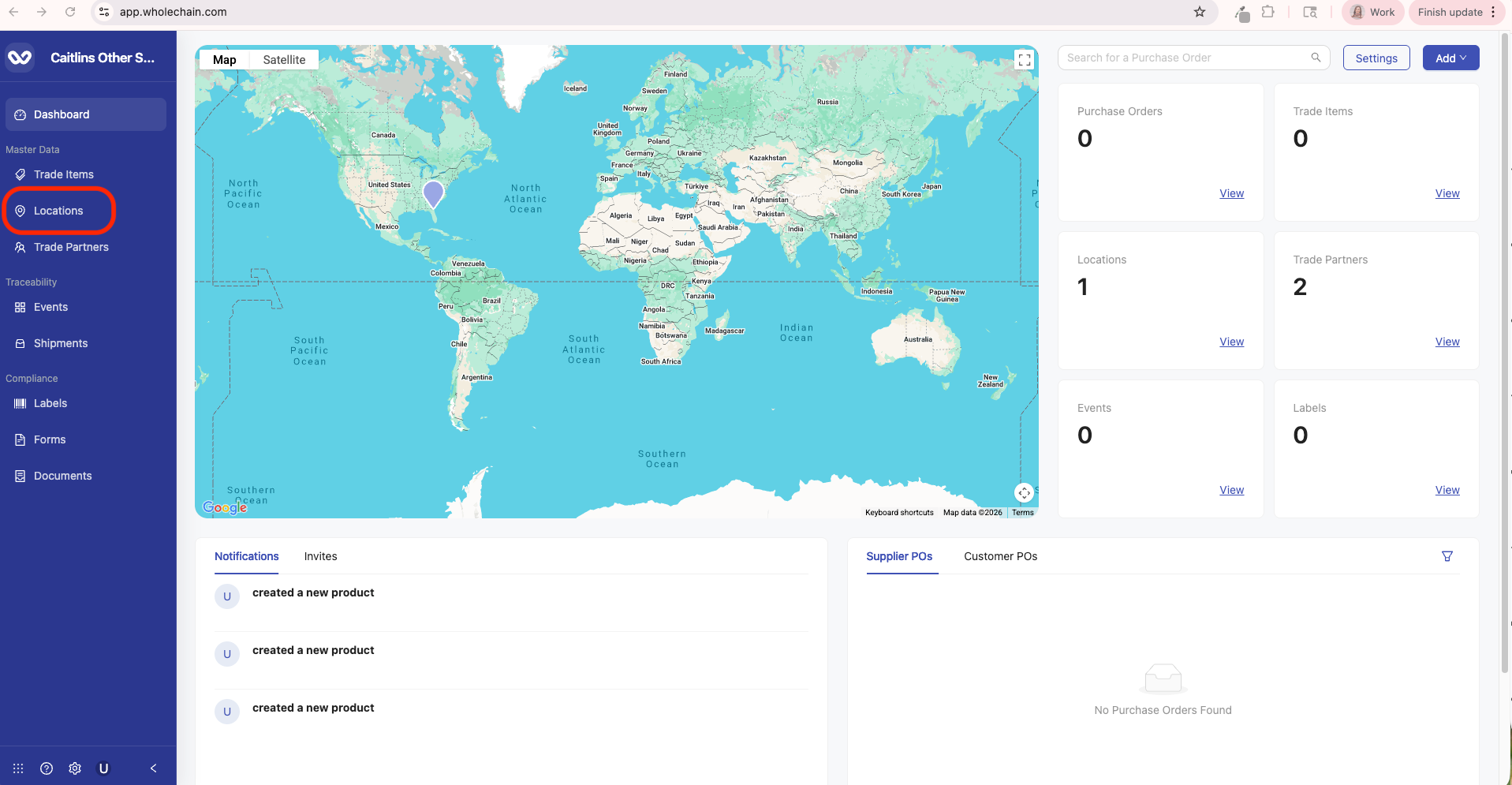
- Add your company location(s) where product is shipped from to your buyer.
- IMPORTANT: You must add your company location(s) before you can fill out and submit the Ship Event Form.
- IMPORTANT: If you are shipping product from a 3PL, you must add the 3PL location in your company locations.
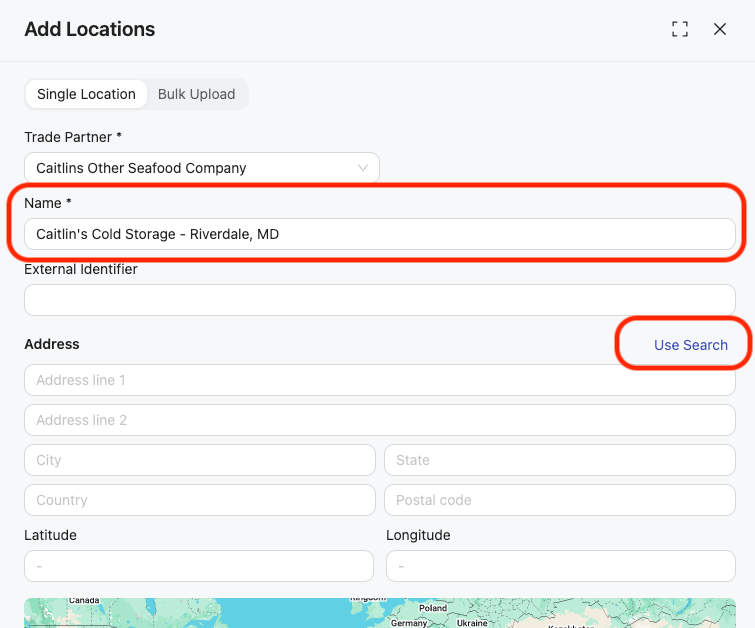
- Enter the Location Name and Address (or geo coordinates). To easily add the address and geo coordinates, click Use Search. Start entering the address. If it does not automatically populate the address, Click Use Manual and manually enter the address and geo coordinates.
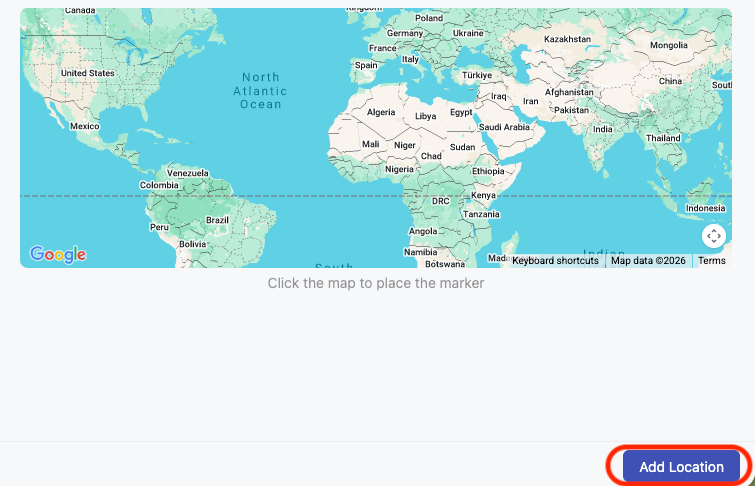
- Click Add Location.
- On the next screen, enter other identifying information (as required by your customer) for the location including the Location’s GLN (13 digits), DUNS (9 digits), and Food Facility Registration Number (11 digits) as well as the location's Contact Name, Contact Email, and Contact Phone for each Location. To save the number, click the check mark.
- If you need to add an additional Location from which you ship Trade Items to your Wholechain customer, click Add Locations and repeat the process.
Note: The Locations will now appear in the Location List. The Locations you add are listed as Self Locations. When you proceed to fill out the Ship Event Form, you will choose from one of the Locations you created as the Ship From Location. The Location(s) listed as Wholechain are the locations your Wholechain customer shared with you. These locations will be listed as Ship To locations in the Ship Event Form.
- You are now ready to enter FSMA 204 Ship Event traceability data in the Ship Event Form: In the left navigation bar, under Compliance, Click Forms. Complete the Ship Event Form for each shipment.
To Fill out the Ship Event Form for Each Shipment
The Ship Event Form should be filled out for each shipment to a single location. The Ship Event form captures key data elements for the ship event only.
- Go to Wholechain.
- Enter your authorized email address to log-in (or Wholechain account login credentials if you have set those up).
- Gather your documents and data relevant to the shipment for your Order fulfillment.
- You should see your Company Name in the Vendor Details section. If you do not, please email support@wholechain.com.
- Fill out all fields and click Submit. For more information on the Ship event form, see below.
Ship Event Form Fields
- Vendor Details - Your vendor name / ID should automatically be populated. If not, please contact support@wholechain.com.
- Ship-From Location - Select your company's physical location where product is shipping from.
IMPORTANT: Ship From locations will only appear in this drop-down after you have added them to your locations in your account. If you are shipping product from a 3PL, you must add the 3PL location in your company locations as well. To add locations to your account: on the left navigation bar, under Master Data, click Locations. Add your company location details.
- Ship-To Location - In the drop-down, select the physical location you are shipping to. This field may or may not be selectable, as determined by the Wholechain Enterprise customer’s preference. The Ship-To locations are set by your customer. If the correct Ship-To location is not populating in the drop down menu, please contact support@wholechain.com.
-
TLC Source Location - A traceability lot code source refers to the physical location where a food was assigned a TLC. The TLC Source is either the initial packer (for aquacultured food), first land based receiver (for wild caught seafood) - i.e. the supplier of the raw materials, OR the entity that last transformed the food you received. You must include the location description for the TLC source which includes: the business name, phone number, physical location address (or geo coordinates). Alternatively, you can provide your FDA Food Facility Registration Number (FFRN) or other identification number [e.g., DUNS, GLN, BAP, etc.] that represents the physical location address (or geo coordinates) that is easily accessible by the FDA.
Note: The Wholechain customer typically determines the format for the TLC source (i.e., if they want you to use an number/ID to capture as the TLC source, such as FFRN or GLN, or alternatively, enter the full location description for the TLC source).
- If products in the shipment have different TLC Sources, click the option “Manually enter the TLC for each product”. If the products have the same TLC source and the box is not checked, the TLC source entered in the shipment details will be automatically included for each product added in the product form below.
- Container Code / SSCC (if applicable) - If you ship product to your customer in a container, enter the container logistics ID or the SSCC, whichever your customer requires. If SSCC validation is on, you will be required to enter the numeric, 18 digit SSCC. If turned off, the form will accept any alpha-numeric container code.
- Purchase Order Number - Enter the Purchase Order Number associated with this shipment.
IMPORTANT: You must enter the Purchase Order in the format as specified by your Customer or as shown on your Purchase Order.
Product Table Details
Add a line for each lot of product shipped into the Product(s) Shipped table. If you are shipping multiple lots of the same product, include each lot and details in a new product line.
- Product - Select the product you are shipping from the drop-down. If your product is not listed, contact support@wholechain.com.
- Quantity - Enter the quantity of the product in the shipment. The Wholechain Supplier Portal owner should specify what they expect the UoM to be. Only the quantity should be entered (not the UOM). Quantity must be in the unit of measure as indicated on your customer’s Purchase Order. For example, if the Purchase Order indicates “20 cases”, include “20” in the quantity field. If the Purchase Order indicates “500 KGs”, include “500” in the quantity field.
- TLC (Traceability Lot Code) - Per FSMA 204, a Traceability Lot Code means a descriptor, often alphanumeric, used to uniquely identify a traceability lot within the records of the Traceability Lot Code Source. The TLC is assigned when the aquacultured food or produce is initially packed, for wild caught seafood: when the seafood is received by the first land-based receiver, or transformed / processed. Once a TLC is assigned, it can only be changed if the food is transformed.
- If you are the initial packer (for aquacultured food), first land based receiver (for wild caught) OR you transformed the food, you will assign the TLC to the food and provide that TLC in the form. If you did not perform any of those activities, per FDA’s FSMA Rule 204, you must include the TLC you received from the entity that assigned the TLC. You must also include the TLC Source of the entity that assigned the TLC.
- For each product, you have the option of including both a TLC and another lot code / production code. If you assigned multiple day/lot codes a single TLC, use the lot code / production code field to include the secondary identifier (i.e. production day code) associated with the TLC.
- TLC Source Location - The traceability lot code source refers to the physical location where a food was assigned a TLC. If the shipment contains products from multiple TLC sources, you must include the TLC source for each product in the shipment per FSMA 204.
- Lot Code / Serial Number / Production Code - This field represents the identifier you apply at receiving or processing / packing. If assigned at processing / packing, TLC will match this number. If applied at receiving, this number will be different than the TLC.
Product Table - Import XLSC/CSV Feature
- To upload multiple products for a single shipment, click the Import XLSC/CSV button.
- Set-up a spreadsheet with the columns listed in the Product Table. See instructions for each column below:
- Product: enter your customer's product number, typically found on the PO. Also available in the drop-down list in the Product Table.
- Quantity: Please match UOM found on the Purchase Order, which will typically be cases. Only include the number, not the UOM.
- TLC: Enter the traceability lot code (TLC) for the lot. TLC means a descriptor, often alphanumeric, used to uniquely identify a traceability lot within the records of the traceability lot code source. The TLC is assigned when the food is initially packed (for raw agricultural commodities not obtained from a fishing vessel), received by the first land-based receiver (for food obtained from a fishing vessel), or transformed. Once a TLC is assigned, it can only be changed if the food is transformed.
- Traceability Lot Code Source: A traceability lot code source refers to the physical location where a food was assigned a traceability lot code. Note: The Wholechain customer typically determines the format for the TLC source (i.e., if they want you to use an number/ID to capture as the TLC source, such as FFRN or GLN, or alternatively, enter the full location description for the TLC source).
- Lot number: This field represents the identifier you apply at receiving or processing / packing. If assigned at processing / packing, TLC will match this number.
- Upload the file.
- Map each attribute in the file you upload to a field in the system.
- After the fields are mapped, the Import button will appear and the file can be uploaded.
- Click Upload.
- After all of the products for the shipment are listed, click Submit.