Add a Location to a Trade Partner
To Add a Location to a Trade Partner:
- Under Master Data, click Locations. This will navigate the user to the Locations screen.
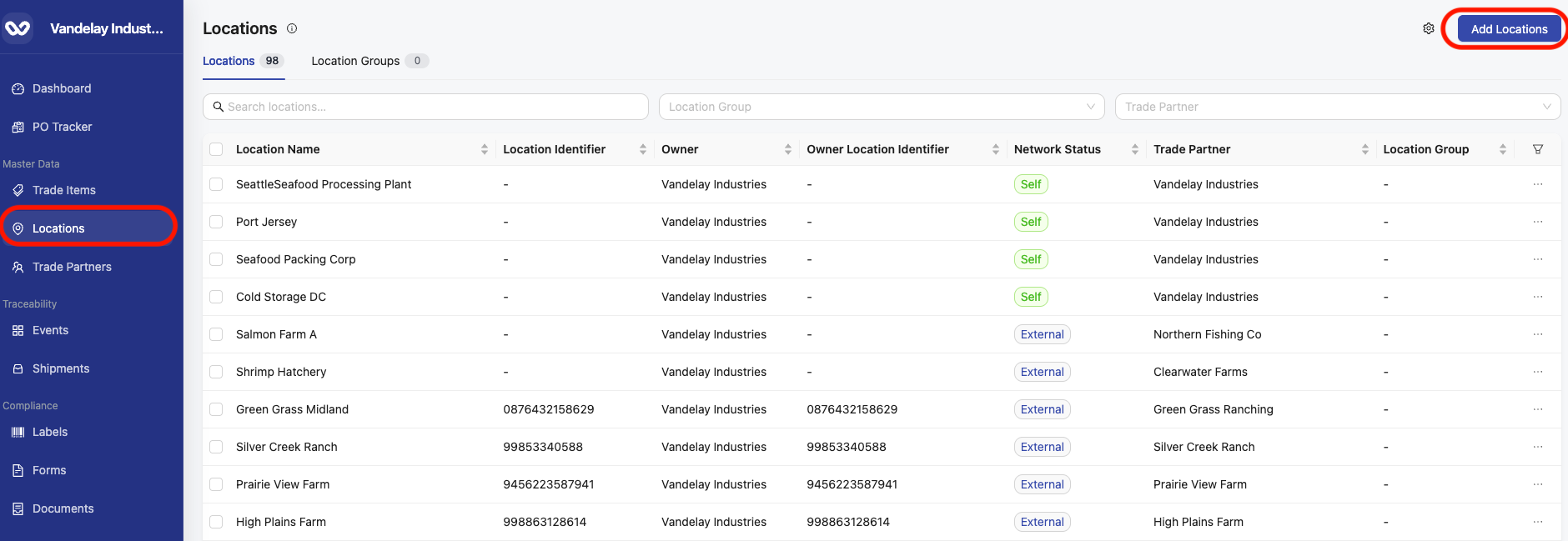
- Click the Add Locations button at the top-righthand side of the screen. This will open the Add Locations drawer for the user to input basic information required to create a new Location.
- Input the Basic Details regarding the Location. Required Fields to Create a Location:
- Trade Partner to which the Location belongs
Note: Your Company is listed as the default Trade Partner in the Trade Partner drop-down. Only use your Company in the Trade Partner Name to add self-locations. Your trade partner's locations should be added under the correct Trade Partner name. You can only add Locations to Trade Partners currently in your Wholechain account. If you need to add a Trade Partner, navigate to Trade Partners and then proceed to add locations under that Trade Partner.
- Location Name
- Address or Geocoordinates
- Tip: Click Use Search to automatically populate the address and geo coordinates!
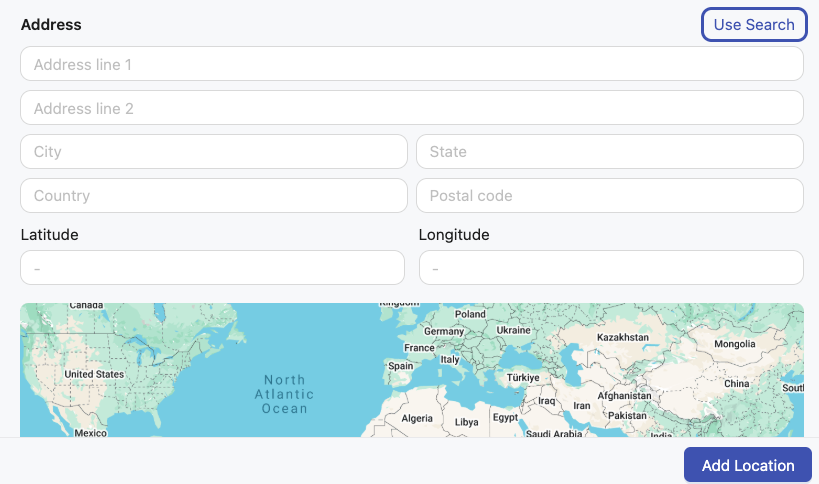
NOTE: Wholechain offers two options for entering address data.
- The default option provides fields for each entry field as well as the Latitude and Longitude of the location. Users should note that click on the map will drop a Location Waypoint on the map and populate the Latitude and Longitude fields with data from the Location Waypoint's place on the map. Users can then drag and drop this waypoint and Latitude and Longitude fields will update accordingly.
- The secondary option for entering address data is to Use Search. This allows users to enter Address information as a string to search Wholechain's geolocation databases. If Wholechain can find the entered address, once selected, Wholechain will automatically populate the Latitude and Longitude of that address.
- Once the required fields are filled, click Add Location at the bottom-righthand side of the drawer. This completes the creation process. The Location is now available underneath the Trade Partner specified during creation for traceability events, using in the Ship Event Form, sharing with other Wholechain accounts, etc.
- As needed, you can populate additional Details for the location in the Details section including:
- GLN (must be 13 digits)
- DUNS (must be 9 or 13 digits)
- Food Facility Registration Number (FFRN) (must be 11 digits)
- Contact & Address
- Note: FSMA 204 requires a Phone Number as part of the Location Description for each location.